
Triggers of the Turbo Notify node
A trigger starts a workflow when something happens on your numbers: a message arrives, a send is delivered, a number disconnects. The node has two, and they hand on the same event.
Choose a trigger
Section titled “Choose a trigger”| Turbo Notify Trigger | Turbo Notify Polling Trigger | |
|---|---|---|
| How it starts | Turbo Notify calls n8n the moment the event happens | n8n asks for new events at the interval you set |
| Delay | None | Up to the interval, one minute at the shortest (the least n8n allows) |
| Plan | Lone Wolf or higher | Every plan |
| Needs | An address n8n can be reached on from the internet, and a secret you type in the dashboard and in the credential | Nothing else |
Try the Polling Trigger first. It is the only one on the Free plan, it works behind a firewall and on a local n8n, and it needs no setup outside n8n. Use the instant trigger when the delay matters.
Where to find them
Section titled “Where to find them”In n8n, open Add first step (or the + of an empty workflow), and search for Turbo Notify. The panel What triggers this workflow? shows two entries:
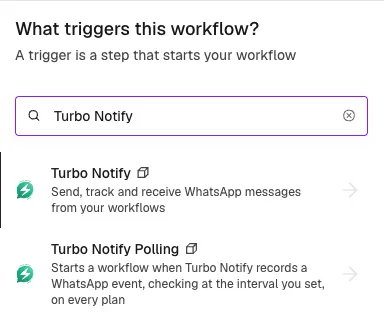
- Turbo Notify is the instant trigger. Open it and choose the event to start from, such as On message received, or On any event. The step that is added is called Turbo Notify Trigger.
- Turbo Notify Polling is the Polling Trigger.
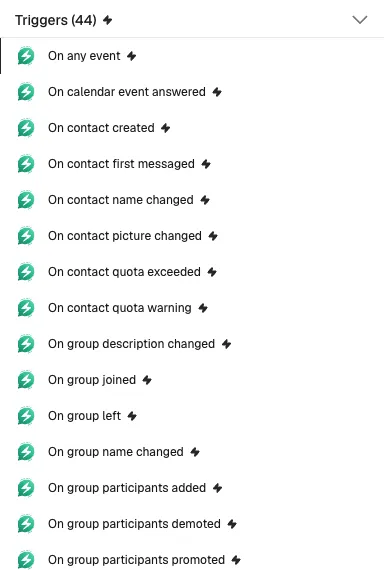
The instant trigger is a list of “On …” events because each one is the same trigger with the event already chosen. You can change the Events afterwards.
What a trigger hands on
Section titled “What a trigger hands on”Both triggers pass the whole event to the next node. Choose one or more event types, or Any Event (message, number, contact, group, quota and storage events).
{ "id": "evt_2b09b39a44ffc0d3039251f995e4c284", "type": "message.received", "organization_id": "org_a1b2c3d4e5f6a1b2c3d4e5f6a1b2c3d4", "number_alias": "main", "number_id": "num_0a1b2c3d4e5f60718293a4b5c6d7e8f9", "created_at": "2026-06-01T18:32:11Z", "data": { "id": "msg_a1b2c3d4e5f6a1b2c3d4e5f6a1b2c3d4", "from": { "name": "Ana Souza", "number": "5511988887777" }, "to": { "name": "Turbo Notify", "alias": "main", "number": "5511973117056" }, "preview": "Hi, I'd like to know...", "content_type": "text", "direction": "inbound", "channel": "whatsapp", "origin": "native", "at": "2026-06-01T18:32:11Z" }}What to do with it:
| You want | Use |
|---|---|
| The sender | data.from.number, digits only, without + |
| The message ID | data.id |
| The whole text | data.preview is the first 50 characters. Add Message > Get with Message ID {{ $json.data.id }}: the text is in text. |
| To answer | Reply with Message ID {{ $json.data.id }}, or Send Text with Phone Number {{ '+' + $json.data.from.number }} |
| To skip groups | A message from a group has data.to.group_id. Test that it is empty with an If node. |
| Several event types | A Switch node on {{ $json.type }} |
| Your own deduplication | The event id is stable |
The events and their fields are in Events via webhook.
Polling Trigger
Section titled “Polling Trigger”It checks for new events at the interval you set under Poll Times and starts the workflow once per event, oldest first. It reads GET /v1/events, so it works on every plan and needs no public address.
- Add Turbo Notify Polling Trigger and choose your credential.
- Choose the Events you want, and a Number if the workflow is for one number only.
- Set Poll Times (one minute is the shortest n8n allows).
- Select Execute step to see the most recent matching event as sample data, then activate the workflow.
How it behaves:
- The first time the workflow is activated it starts from now and does not run for past events. If you change the events or the number afterwards, it starts from now again.
- It reads the last two minutes again on every check and skips what it already handed on, so an event that becomes visible a moment late is not lost.
- A workflow that was off catches up on nothing. To fetch what it missed, use Event > Get Many with Created After.
Turbo Notify Trigger (instant)
Section titled “Turbo Notify Trigger (instant)”A webhook: Turbo Notify calls n8n the moment the event happens. It needs a Lone Wolf plan or higher and an address on the internet. Your organization has one webhook address: if it is already used somewhere else, use the Polling Trigger.
1. Get the address from n8n
Section titled “1. Get the address from n8n”Add the instant trigger (Turbo Notify, then the event). At the top of the step, n8n keeps Webhook URLs closed: open it to see two addresses, with a tab each.
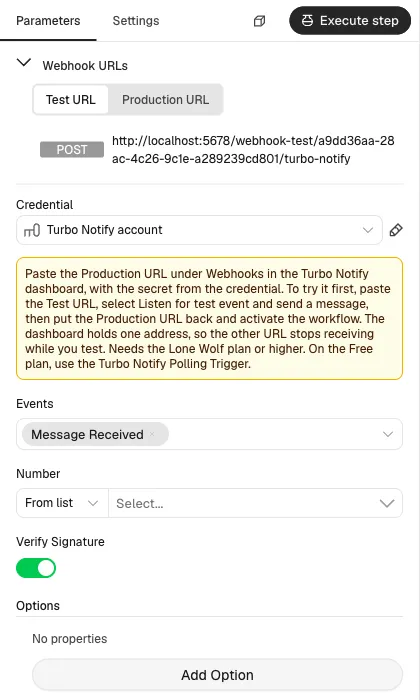
The two addresses:
- Test URL: n8n listens on it only after you select Listen for test event, and for one delivery.
- Production URL: n8n listens on it while the workflow is active.
The address must be public HTTPS. A local n8n is not reachable from the internet: start a tunnel to it and set the tunnel address as the n8n webhook address (WEBHOOK_URL), so the URLs the trigger shows are the public ones.
2. Register it in the dashboard
Section titled “2. Register it in the dashboard”- Open Webhooks (opens in a new tab).
- Paste the URL.
- Type a secret: a long random value. Turbo Notify does not generate one.
- Select Save settings. Only an owner or an admin can save.
3. Put the same secret in the credential
Section titled “3. Put the same secret in the credential”In n8n, open the Turbo Notify API credential and paste the secret under Webhook Signing Secret. The trigger refuses to start without it.
4. Try it, then go live
Section titled “4. Try it, then go live”- Copy the Test URL into the dashboard, select Listen for test event and send a message to your number. The first delivery appears, whatever the filters say, because n8n stops listening after one.
- Put the Production URL back in the dashboard and activate the workflow. The dashboard holds one address, and n8n answers 404 on a URL that is not listening.
How a delivery is checked
Section titled “How a delivery is checked”Every delivery is checked against the secret (the signature header) and refused when the signature is wrong or the delivery is more than five minutes old. Verify Signature can be turned off to try things out. Under Options:
- Ignore Duplicates (on by default) skips an event that arrives twice, because Turbo Notify delivers each event at least once.
- Number limits the trigger to one number.
If n8n is down
Section titled “If n8n is down”On Lone Wolf an event gets exactly one attempt, so one that finds n8n down is not delivered again. Catch up with Event > Get Many (Created After), or use the Polling Trigger. Business and above retry up to six times. The details are in Events via webhook.
When no event arrives
Section titled “When no event arrives”| What you see | What to do |
|---|---|
| n8n answers 404 | The URL is not listening. The Test URL works only while Listen for test event is on, and the Production URL only while the workflow is active. |
| The trigger refuses to start | Fill Webhook Signing Secret in the credential. |
| The delivery is refused | The secret differs between the dashboard and the credential, or the delivery is more than five minutes old. Type the same value on both sides. |
| Nothing arrives and the dashboard shows an error | The address is not public HTTPS. A local n8n needs a tunnel. |
| The dashboard does not save | Only an owner or an admin can save the webhook. |
| Events arrive twice | Leave Ignore Duplicates on, or deduplicate on the event id. |
| The Free plan has no webhook | Use the Polling Trigger. |
To watch a delivery without n8n, register the address of the Webhook Inspector (opens in a new tab) first: see Events via webhook.